Use Office 365 Email with TIM Plus
Introduction
In order to use Office 365 email with TIM Plus you will need to setup an app password within your Office 365 environment.
Create App Password
- Sign in to Office 365.
- Choose Settings > Office 365.
- Choose Security & Privacy > Additional Security Verification. You’ll only see this option if your admin has set up multi-factor authentication for your organization. If you don’t see this option, contact your Office 365 admin and tell them to turn on multi-factor authentication.
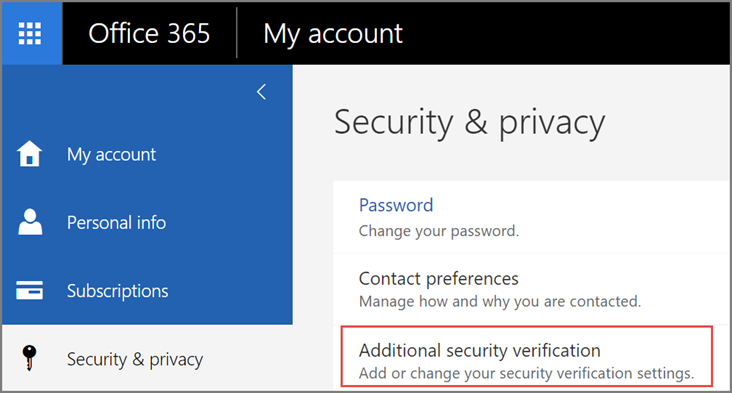
- Choose Update my Phone Numbers Used for Account Security. You should see the following screen:
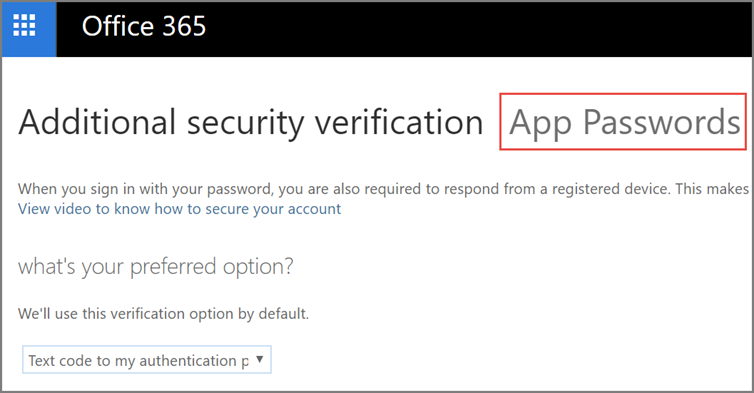
- At the top of the page, choose App Passwords.
- Choose Create to get an app password.
- If prompted, type a name for your app password, and click Next.
- Push copy password to clipboard button. We will need this later.

Office365 SMTP Server Settings
The settings below should work for everyone with an Office 365 or Microsoft 365 plan that has Exchange Online. Use these settings in TIM Plus for the email server parameters:
SMTP Host: smtp.office365.com
SMTP Port: 587 (with TLS)
Authentication: Standard
Username: (your Office 365 email address) ([email protected])
Password: (your Office 365 password)
Mail server requires an SSL connection: Enabled